Cisco APs are strong and reliable but require a little more configuration than your typical Linksys, Dlink, or Netgear. In this article, you will find out how to configure this enterprise grade wireless AP (a Cisco 1242G) to allow your wireless users to connect to your LAN, through your Wireless LAN (WLAN). Lots of photos are included!
This article was originally published at SearchNetworking.com
I just unboxed my new Cisco 1242AG (part number AIR-AP1242AG-A-K9). This is a business-grade wireless AP that retails for about $500. Before I show you how I configured this wireless AP, let me give you a brief rundown of its capabilities.
What does the Cisco 1242AG AP offer me?
This Cisco 1242 wireless access-point (AP) is a wireless AP for business-grade users. If you have a lot of traffic, you need reliability, and some advanced features, this AP is for you. For a business, personally, I wouldn’t ever install any consumer grade AP unless you are asking for trouble. The reason being is that those consumer grade APs (the ones you can buy at your local electronics store), just don’t have the capabilities, the reliability of connections, the troubleshooting, or the throughput to do what you need them to do.
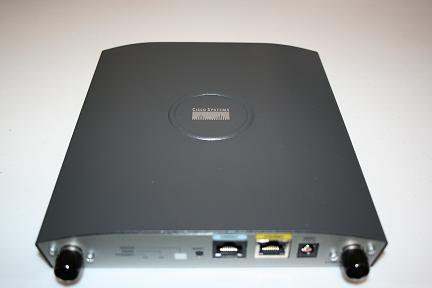
Here is a photo of my actual 1242AG that I configured in this video:
Here is a photo of the front of the AP:
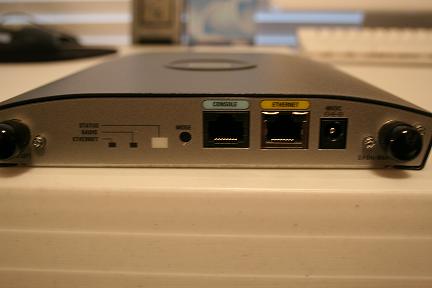
As you can see, this AP has an power connection port (which goes to an AC/DC adaptor), a console port, Ethernet port (to connect to the physical LAN), and indicator lights. You can also power the AP over the Ethernet wire with PoE (802.3af) On this model of AP, you will notice 4 black rubber covers. These cover the connectors for the wireless antennas (2 on the front and 2 on the back). On the front of the AP are the 2 antenna connectors for the 2.4Ghz network with the right connector being the primary. On the back, are the connectors for the 5Ghz network. These antennas can be bought separately and are only required if you want to extend the range in some way or do point to point bridging between APs. Many times, in a business you do want to extend or shape the wireless range, both for coverage and security. In that case, you would want to investigate and use the external antennas.
The 1242 offers the following:
- A, B, and G wireless protocols in the 2.4 and 5Ghz wireless ranges
- A long list of security protocols that you won’t find in consumer grade APs
- Intrusion Detection & Prevention
- Hardware assisted AES encryption
- Locking mounting bracket and a rugged NEMA metal case
- Compatibility with Cisco’s wireless management applications
- That Cisco IOS CLI look and feel that we are used to configuring (or a web browser interface if you so desire)
You can find more specifics on these APs at the Cisco homepage for the Aironet 1242 series.
Configuring the 1242 Wireless AP
Here are the steps I took to get my wireless AP functioning on my network:
- Connect to power and LAN Ethernet
- AP obtains IP address from DHCP server. I went to my DHCP server and found the IP address that it had obtained:
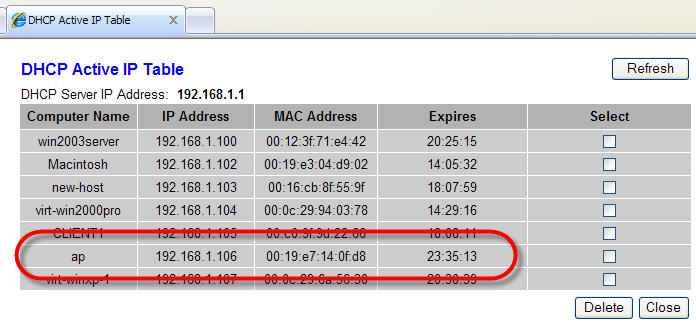
- Point your web browser to the AP. In my case, the DHCP-obtained IP address was 192.168.1.106. The default login (console or web) is Cisco and Cisco (not cisco and cisco) for the username & password. Here is what I saw:
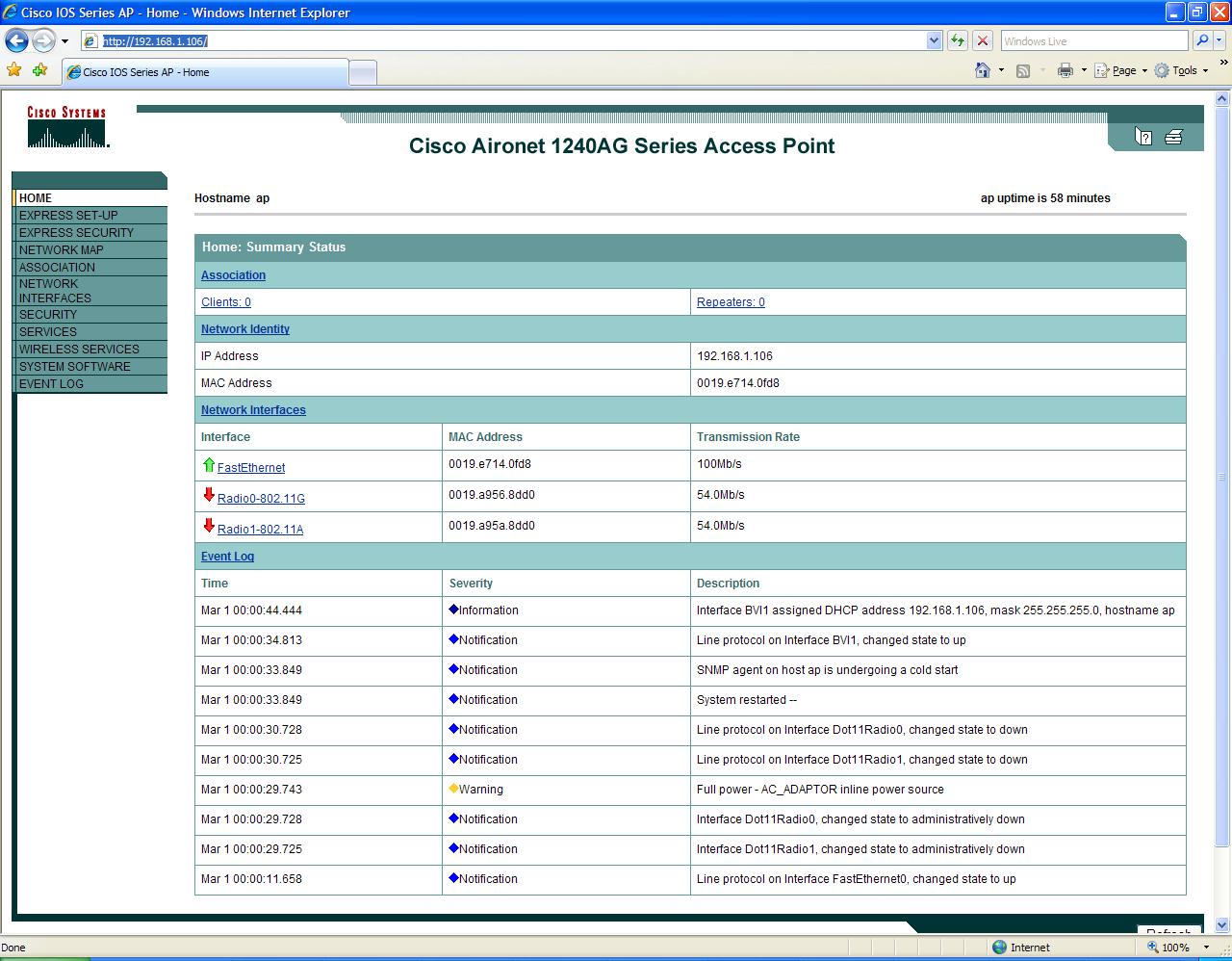
Notice how both the 2.4Ghz and 5Ghz radios show to be “down”. On APs with version 12.3(4)JA and above, the wireless radio is disabled by default and there is no SSID configured. This is for security reasons.
Also, note on the menu selections for the interface that there are options for Express Setup and Express Security. If these are available, why not use them?
- Click on Express Set-up. Notice the changes I made in the following screen. Not all of these are required. I changed the AP’s name, set it to a static IP, changed the SNMP community string, and took the default of “Access Point” for both radios.
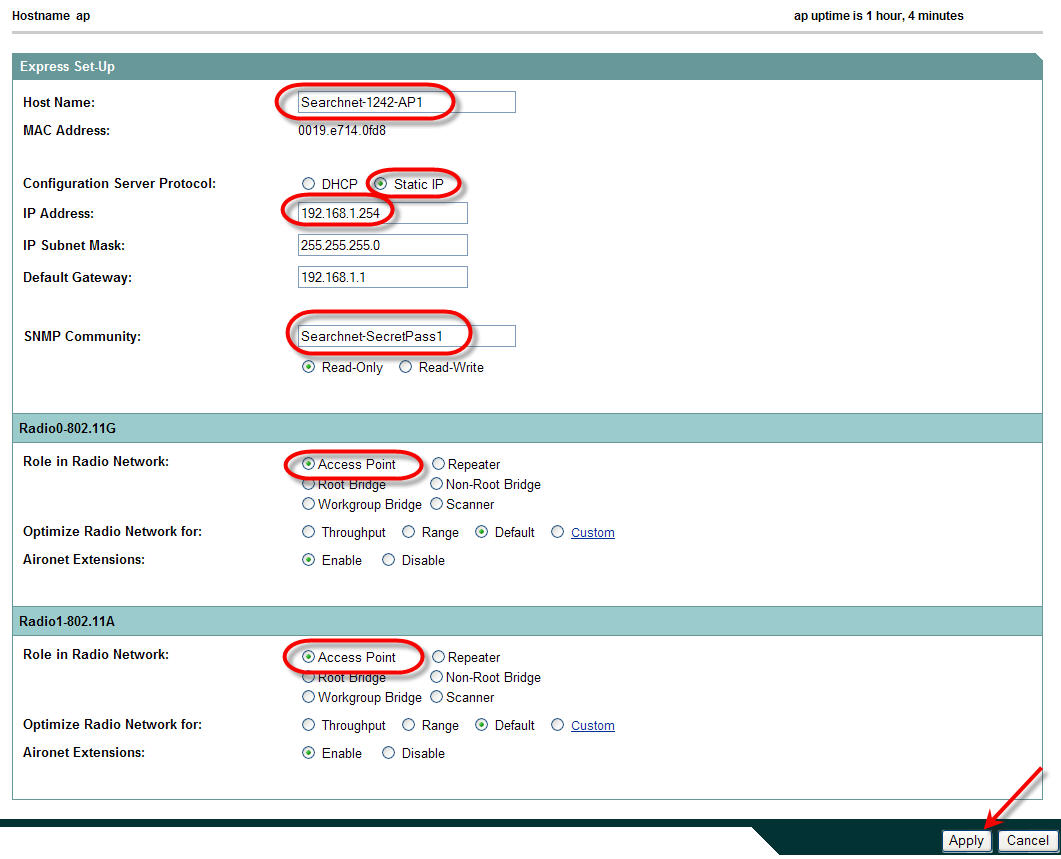
Next, I clicked Apply. I was redirected to the new IP address of the AP and I had to login again.
- Next, I clicked on Express Security and set the SSID, the SSID to be broadcast, and 40bit WEP encryption with a static key (basic I know but just an example).

- Still, there are two important things left to do- change the admin password and enable the radios. To enable the radios, I clicked in Network Interfaces, on the left. In my case, I was only using the 2.4Ghz radio so I clicked on Radio0-802.11G, then on the Settings tab. I clicked on Enable for the radio and took all the other default settings.

At the bottom of the page, I clicked Apply.
- Finally, let’s change the admin password so that no one else can get into our AP. To do this, I clicked on Security on the left hand side, then Admin Access. From here, I changed the default Authentication password and clicked Apply. I had to reauthenticate to the AP.
Then, I created a new account called Admin with a secure password, and Read-Write capability (clicked Apply). After that, I deleted the default Cisco account (clicked Apply).
Here is what is looked like:

Note that we are still using a single global password for all users instead of individual users having their own passwords. You may want to change this.
- At this point, I could see the wireless network from my Windows computer and was successfully able to connect to it using the configured WEP key. My computer received a DHCP IP address from my DHCP server.

Configuration Successful!
Article Summary
In this article, we learned what the Cisco 1242 wireless AP can do for you and how to configure one from scratch. We applied basic security settings to it, enabled the wireless radios, and successfully connected to it. The 1242AG is a powerful business-grade wireless AP and lots of features. While it costs much more than a consumer grade wireless AP, I believe you will find the features are well worth it.
Complete Cisco documentation for the Cisco AP1242 is available at: http://www.cisco.com/univercd/cc/td/doc/product/wireless/airo1240/index.htm
Hi,
I purchased the AIRLAP 1242AG K9 and tried the above but I can’t get to the web interface. It got the IP from DHCP and I can see it in the DHCP list.
Any ideas?
skhan,
You cannot do that on AIRLAP 1242AG K9 because you need a Wireless LAN controller for that or you will convert your AIRLAP 1242AG K9 to IOS.
Cheers,
Dunggot
as I can configure the AP 1242AG-to-k9 to work as dhcp and how can I make the AP work with the ACS
hello again I understand my question and can help my doubt is that if ap 1242 Cisco can dhcp works as what I mean that if he can shed the IP address automatically.
thanks for your reply.
Hi I have a cisco 1242 access point and i need some guidance in getting antennas to go along with this unit. I have already purchased ANT5195P-R and connected to the primary connection.
The problem i face is i do get the connection but its really weak and therefore it doesn’t give me a signal out of my cubicle!!
Pls suggest is there another device that i need to connect along with this Antenna or if there are any other antenna to give me an indoor 35m
Regards,
MJ
Have a check again. If you have connected the antenna at the port at the bottom or the one at the top. You should be connecting it to the one at the top.
If not sure, just swap the connection and it should be fine.
Hello, I bought a similar router, a AP1231G-A-K9; for some reason, I just can’t optain it’s IP address from my DHCP server at all. I tried to reset everything, but just can’t see the AP. Can you please shed some lights?
Thanks.
If you are using a cisco router as dhcp server try the following
#show cdp neighbors detail
Now a question: I want to use more access-points on the same network for better coverage, how shoult I configure them? Same SSid? as access-points? I’ve been thinking about using them as repeaters but i’m not shure that this is the right way.
Hi.
In the article there is a very wrong onfo about external antennas.
You should always atatche at least the 2 rubber duck dipole 2.2 dbi external antennas.
You may otherwise burn your radio becuse there is no internal antenna in the AP.
The energy has to go somewhere, better to the air instead of heat.
Hi
How can i make a bridge between 8 ciscos 1242. One root bridge and the others, nonroot.
Tnx.
Caldeira
hello there!!! could you post how to setup radius local autenticator, I already checked the cisco manual, followed step by step and it doesnt work… any help!!! cheers
Hello, I am also interested in any tips you have for configuring the radius local authenticator on the 1242. We have attempted to configure the device as documented, but cannot get the user ID to authenticate. Do you have any tips? Thanks.
Steve
Hi!
I want know abount default IP of cisco AP 1242AG.
Can you help me?
thank?
Hi, I’m another whos interested in configuring radius. Thanks
Darren
Hello,
I have 2 Cisco 1240’s and trying to set one as a repeater. Would you have a tutorial to do this??
Thanks!
Hi all, I could successfully configured this Cisco 1240AG, but as root bridge, as i need it as a root bridge. But to my surprise, whenever i put it on the network, the whole network connected to one Light-Wave 8 port switch disconnects from the rest of the LAN.
Any help…..?
i will try this and tell but the effort is great keep it up sir/madam
salam
it was great information. Your link for the video doesn’t work. Plus at this age I suggest to use WPA instead of WEP.
AP obtains IP address from DHCP server. I went to my DHCP server and found the IP address that it had obtained:
what happen if i not have DHCP server
i configure PAT in my router
hi
i new in setup wireless network…so if you please provided me more information about the first step when attatch my cisco access point to my lan…..note: my lan take static ip from range of PAT
thanks alot
hi
i new in setup wireless network…so if you please provided me more information about the first step when attatch my cisco access point to my lan…..note: my lan take static ip from range of PAT..i mean how access cisco access point at first time and i don’t have DHCP server …to reach to the step of configure the static ip to the access point
thanks alot
Hello,
I have this AP and i configured this ap by Console interface and it´s works normally.
If someone needs help contact me.
Thanks
Renato Gentil
how to you convert the air-lap1242ag to IOS mode?
hi. i have ap1242ag-a-k9.
i can’t to connect it to my pc.
i tryed to use network cable and/orconsole cable.
and please tell me how to reset all settings on it
Hi Renato,
I got a air-lap1242ag and to get to the IOS u simply press the mode button and connect the power on the router, then u wait for an amber light to stay permanent under status (20 to 30secs) the u plug in a console cable and open a hyperterminal window on your pc and it’s just like access the CLI for any other Cisco device.
My problem is i want to downgrade the air-lap1242ag to work as autonomous as I have no controller for this. Anyone?
Regards
Spikon
Hi Friend,
i ahve configure Access Router 1242 AG,but i am facing some problem
i WANT TO KNOW how access internet through my proxy server,
please suggest me.
REGARDS
Altaf
Hello… Does Cisco 1242AG has native DHCP server? if yes how to enable … thanks
Hi anyone can help me say what the default user key and the Cisco Access Point Model AIR-AP1242AG-N-K9 I try to take over HTTP
Why can’t I access a CISCO Aironet 1242AG, I can ping it but I can’t get a login screen to come up in explorer, I have serveral PC’s, turning off firewall, different IE but without any luck, any idea’s? Thanks
how about the default ip address ??
what is that ?
I try to configure a 1242 as a repeater on an existing 1242 AP do you know the configuration steps?
thanks
Hi I received one aironet ap 1232 ag but has the lightwave IOS, i can access it by console , and ping on its Ip. But i do not have access to web page to configure it. What I have to do? Thanks a lot
I have an AP AIR-AP1242G-A-K9 and I need to connect it in Lan Cisco controller 4402.
How I have to configure the AP?
What is the difference between CISCO AP 1131 and CISCO AP1242. Will 1242 give better signal strength than 1131?
How do I configure CISCO 1131 as an Access Point + DHCP server .
how to reset password
CISCO Aironet 1242AG
Hello everyone!
I have a Cisco Air-AP 1242AG-A-K9. I have the two radios enabled and FastEthernet as well. I added the ssid to broadcast. On my laptop I see two wireless access points coming from the 1242AG. The default which I think is coming from the Fastethernet and the one from the the SSID. I have excellent signal strength on the SSID, but very low on the fastethernet. I don’t know if there is an option where I can just see one wireless access point and with excellent connection.
Any suggestions please?
to reset power on 1242ag
unplug power
hold down mode button,
plug in power while holding mode
hold mode until light changes color, about 3 seconds.
hi , i have air-ap1242ag-e-k9 , how can i configure this ap throw the console port ? how can i give him IP throw the console port ?????
i dont have DHCB server ,,, plz any help ?
Finally. This is a wonderful guide. I just wanted this to be a simple setup process, but cisco doesnt seem to like simple and their quick starts guides and setup guides are just HORRIBLE. Thank you so much, everything works great now.
Dhcp Server on switch
**Copy and paste**
Conf t
Vlan 10
Int vlan 10
IP address 10.1.1.1255.255.255.0
No shut
Exit
Ip dhcp exclude-address 10.1.1.1 – 10.1.1.9
Ip dhcp pool WIFI
network 10.1.1.0 /24
Default 10.1.1.1
Exit
**add the port connected to the AP t0 vlan 10**
Console to the AP and it will pick up an IP address.
Type that ip into your browser using the username of admin and the password of Cisco ( Cisco with a capital C)
Hope this helps